How to Zoom In While Screen Sharing (Without Interrupting Your Presentation)
Learn how to effectively zoom in and highlight specific areas of your screen during live presentations on Zoom, Google Meet, and Teams.
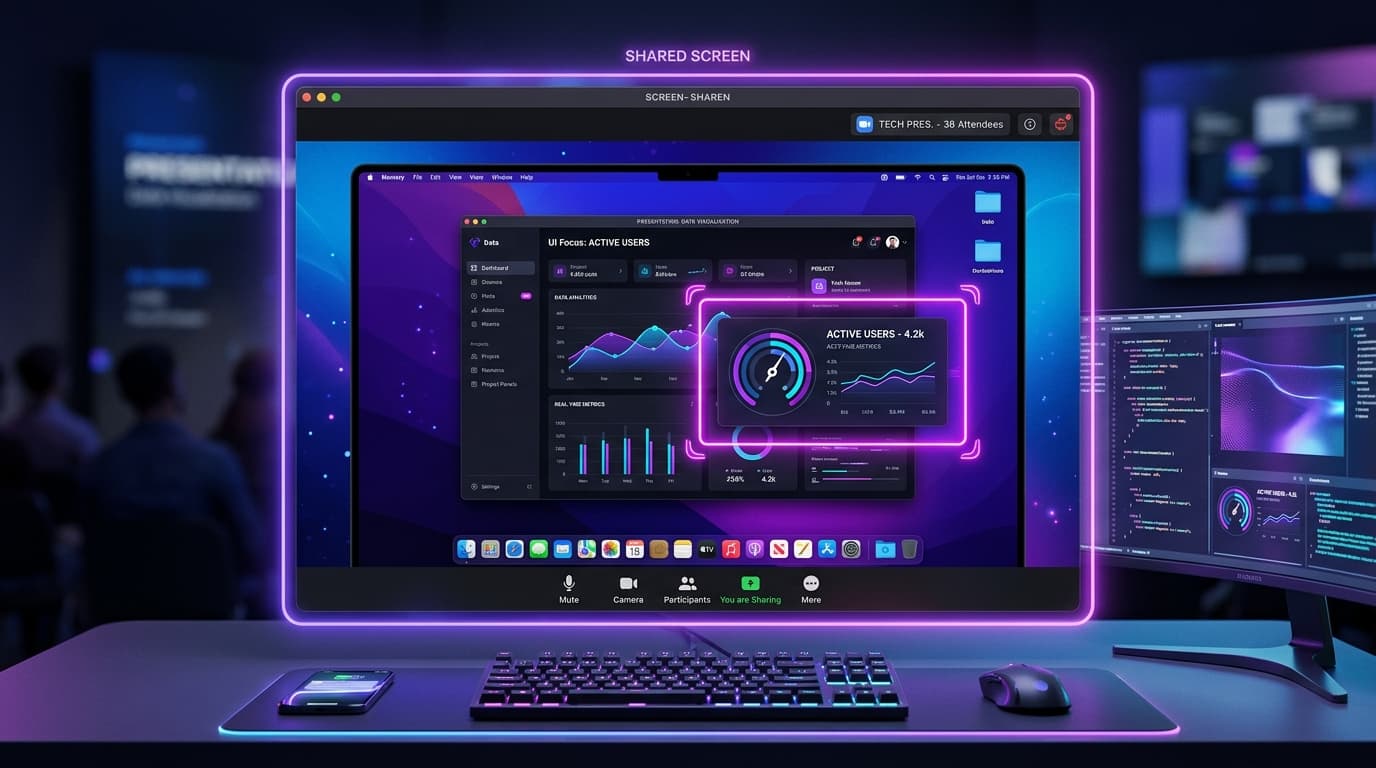
If you've ever presented over Zoom, Google Meet, Microsoft Teams, or any other meeting platform, you've probably experienced this:
You know exactly where to click, but your audience doesn't.
The button looks tiny. The text is unreadable. Someone says, "Can you zoom in?" You start increasing your system zoom, dragging windows around, or apologizing while everyone waits.
There's a better way.
Why Zooming During Screen Sharing Is So Difficult
Most meeting platforms only stream your screen. They don't help viewers focus on the important parts.
This creates a few common problems:
- Small UI elements become difficult to see.
- Viewers lose track of your cursor.
- You waste time manually resizing windows.
- The presentation feels less polished.
These issues become even more noticeable when demonstrating software, teaching online, or presenting to large audiences.
Option 1: Increase Your Browser Zoom
If you're presenting a website, you can increase your browser zoom using:
- Windows: Ctrl + +
- macOS: ⌘ + +
This works well for websites but affects the page layout and isn't useful for desktop applications.
Option 2: Use Your Operating System's Magnifier
Windows includes Magnifier, and macOS offers Accessibility Zoom.
While these tools can enlarge part of your screen, they come with several drawbacks:
- The entire screen becomes magnified.
- Navigation becomes awkward.
- Viewers may lose context.
- The movement often feels abrupt.
They're designed for accessibility, not polished presentations.
Option 3: Resize Windows
Another workaround is manually enlarging the application window.
This is simple, but it only works if you have enough screen space. Constantly resizing windows during a live presentation also breaks the flow.
A Better Way: Smooth Camera-Style Zoom
Instead of changing your desktop, imagine your audience is watching through a virtual camera.
As you move your cursor, the view smoothly zooms into the relevant area. When you're finished, it gently zooms back out.
The audience always knows where to look, and you never have to interrupt your explanation.
This approach keeps your desktop exactly as it is while making the presentation dramatically easier to follow.
When Smooth Zoom Makes the Biggest Difference
Smooth zoom is especially useful for:
- Live software demos
- Product walkthroughs
- Sales presentations
- Customer onboarding
- Online classes
- Technical tutorials
- Support calls
- Design reviews
Any presentation involving detailed interfaces benefits from directing your audience's attention automatically.
Tips for Better Screen Sharing
Even without specialized software, these habits make presentations easier to follow:
- Close unnecessary applications.
- Increase your cursor size.
- Slow down when introducing a new interface.
- Highlight the area you're discussing before clicking.
- Avoid opening multiple overlapping windows.
Small improvements add up to a much more professional presentation.
Frequently Asked Questions
Can I zoom in while screen sharing on Zoom?
Yes. You can use browser zoom, operating system accessibility tools, or presentation software that provides smooth animated zoom during screen sharing.
Does Google Meet support smooth zoom?
Google Meet streams whatever appears on your screen. Smooth zoom requires software that modifies the shared output before it reaches the meeting application.
Will zooming affect my audience?
If you're using browser or operating system zoom, everyone sees the zoomed view. Dedicated presentation software can provide smoother transitions that are easier for viewers to follow.
Final Thoughts
Great presentations aren't just about what you say. They're about making sure your audience can clearly see what you're talking about.
When viewers don't have to search for your cursor or squint at tiny buttons, they stay focused on your message instead of your screen.
If you regularly demonstrate software, investing in a smoother way to guide attention can make every presentation more engaging and easier to understand.